
Translate on Top
Translator in your menu bar, for macOS
Click the icon, or press ⌃⌥T from any app. More than 130 languages, a real dictionary, and a layout that grows with your text.

Free 7-day trial, then a one-time purchase. No subscription. Requires macOS 14 or later and an internet connection.


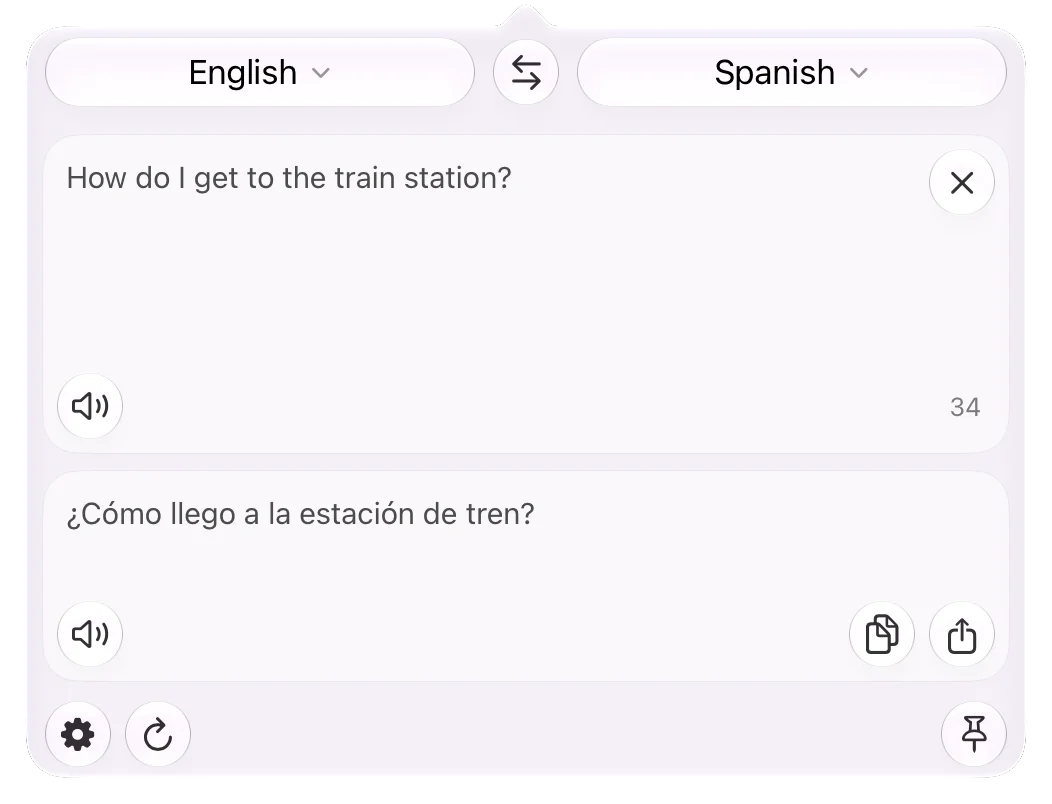
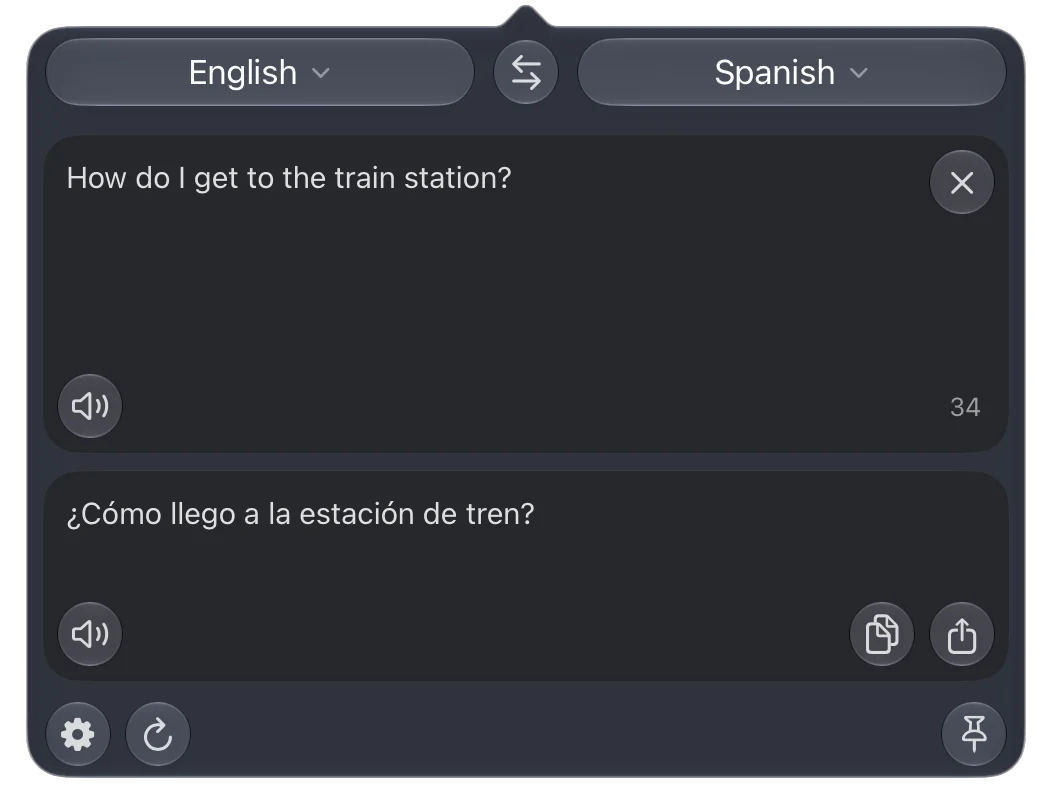
One shortcut, any app
Menu bar or keyboard
Click the icon or press ⌃⌥T. The popover opens with the cursor in the text field.
Selected text
Translate on Top sits in every app’s Services menu and right-click menu. Select text, pick it, read the translation.
Full screen too
Over a full-screen app the popover drops from the top of the screen.
Your languages, a keystroke away
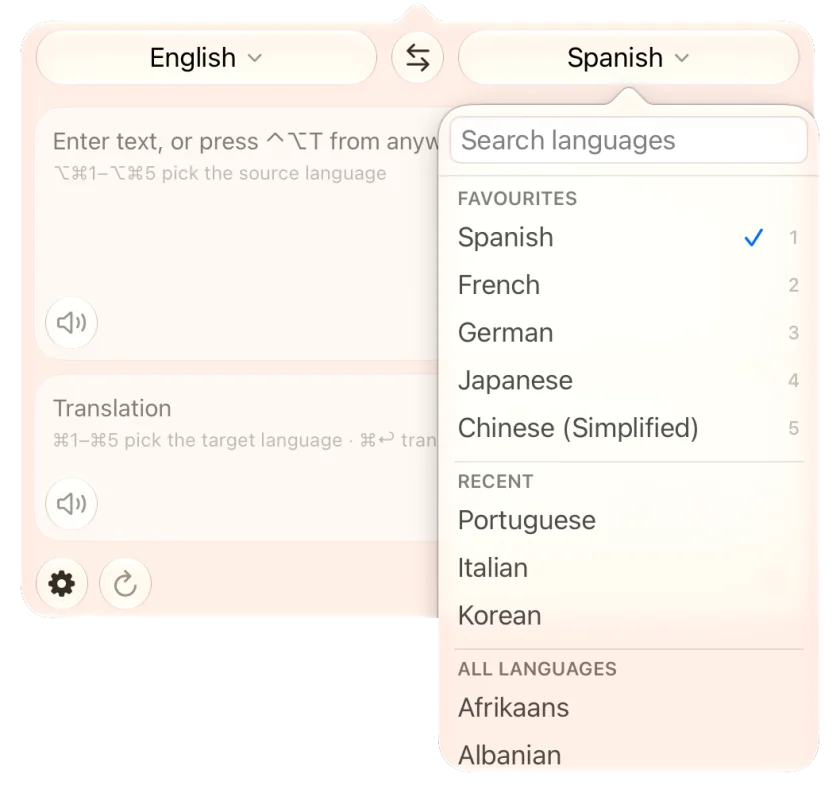
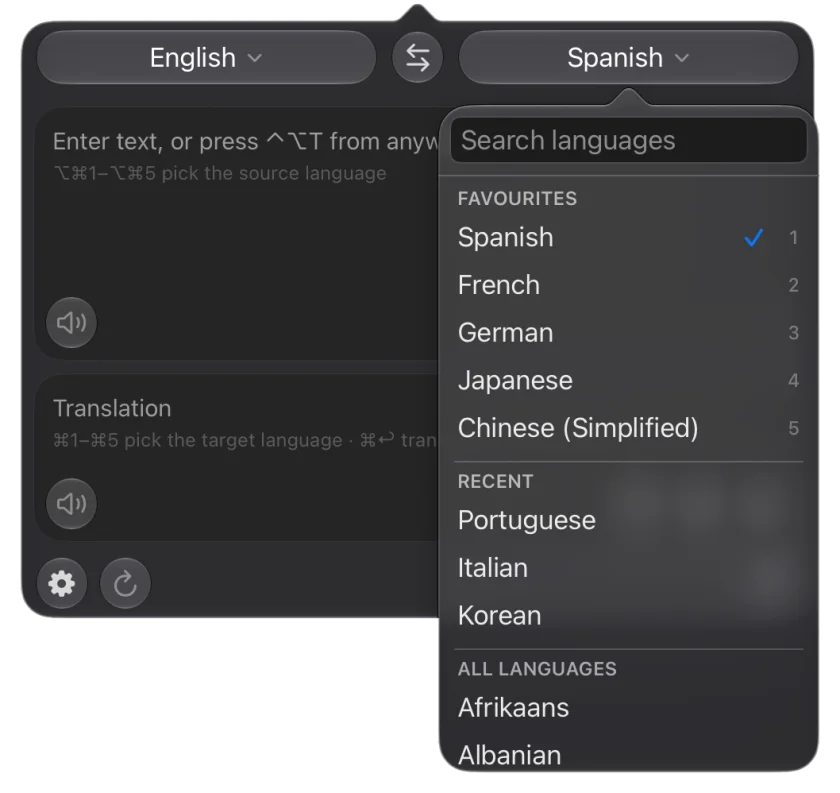
Five favourites, numbered
Right-click the languages you use most to pin them to numbered slots, then switch with ⌘1–⌘5 without opening a list. Add ⌥ to change the language you translate from.
Swap mid-sentence
⇧⌘S swaps the two languages and puts the translation in the editor, ready for your reply.
Any keyboard layout
The shortcuts follow where the keys are, not what they type, so they work on French, German and every other layout.
Not just a translation
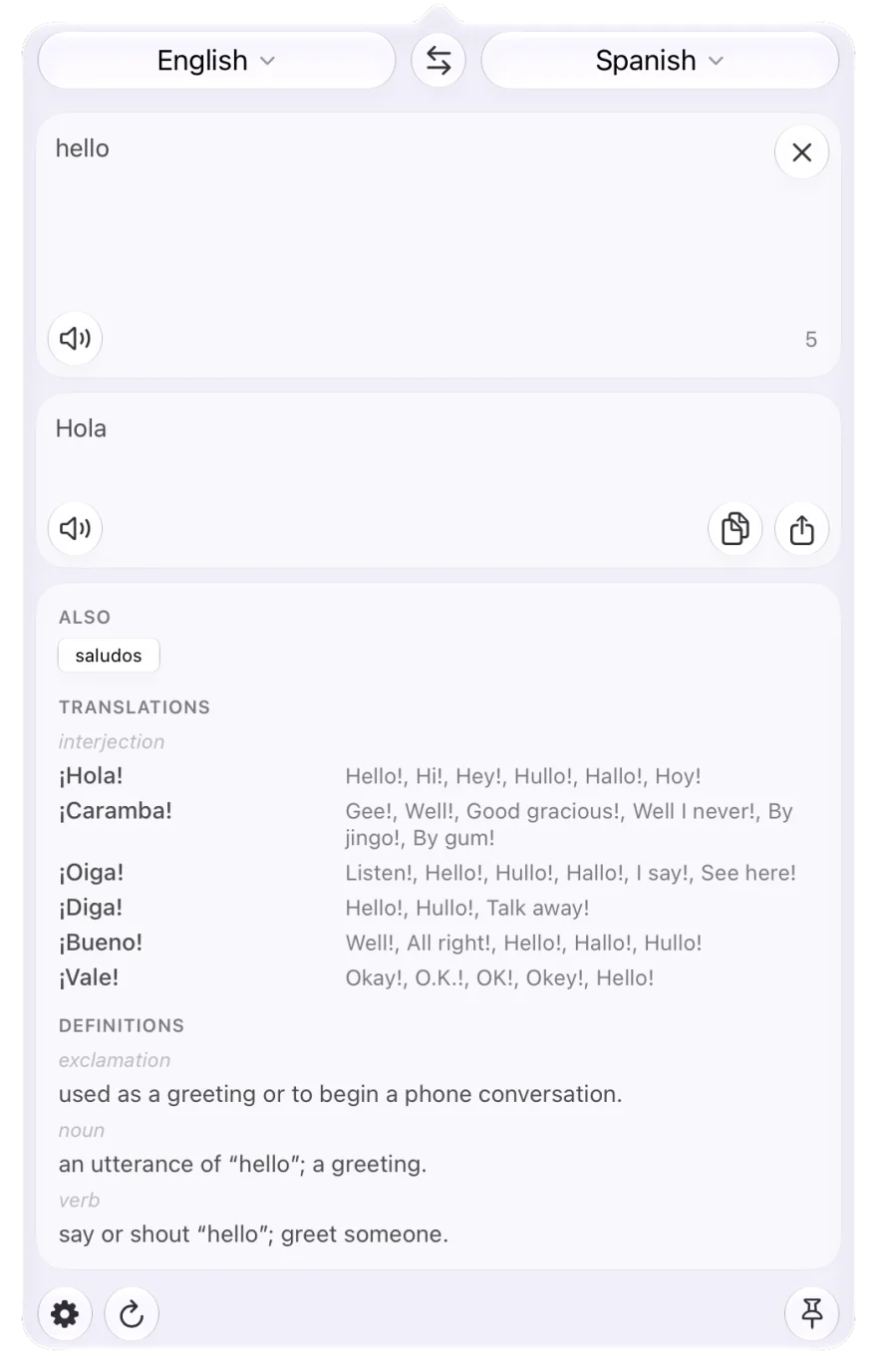
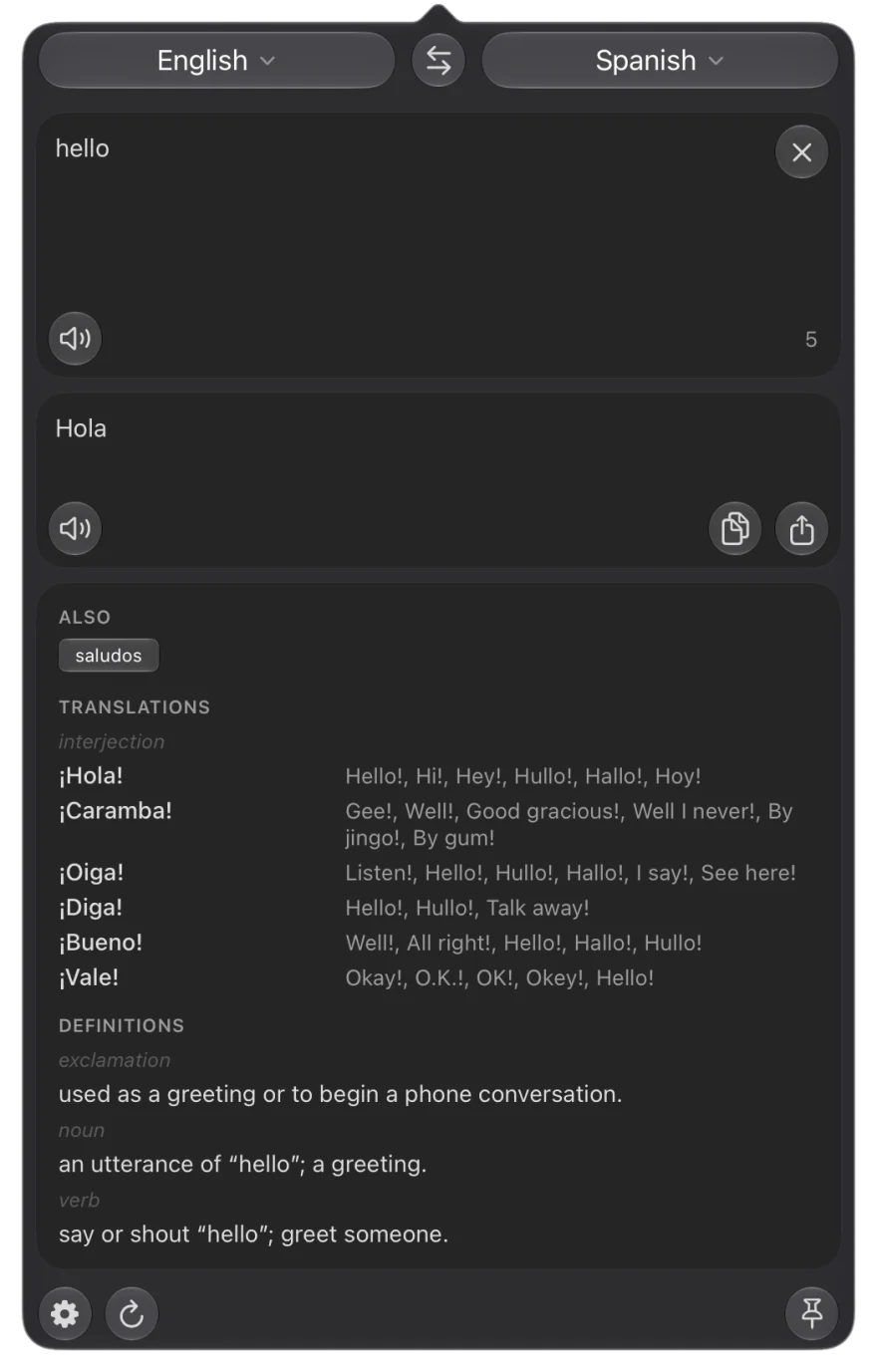
Look up a word and you get a dictionary entry, not a single answer: other ways to say it, translations by part of speech, definitions and synonyms. Tap an alternative to use it instead.
Translations into Russian, Japanese, Arabic and other scripts come with a transliteration, so you can sound out what you cannot read yet.
Long texts, your way
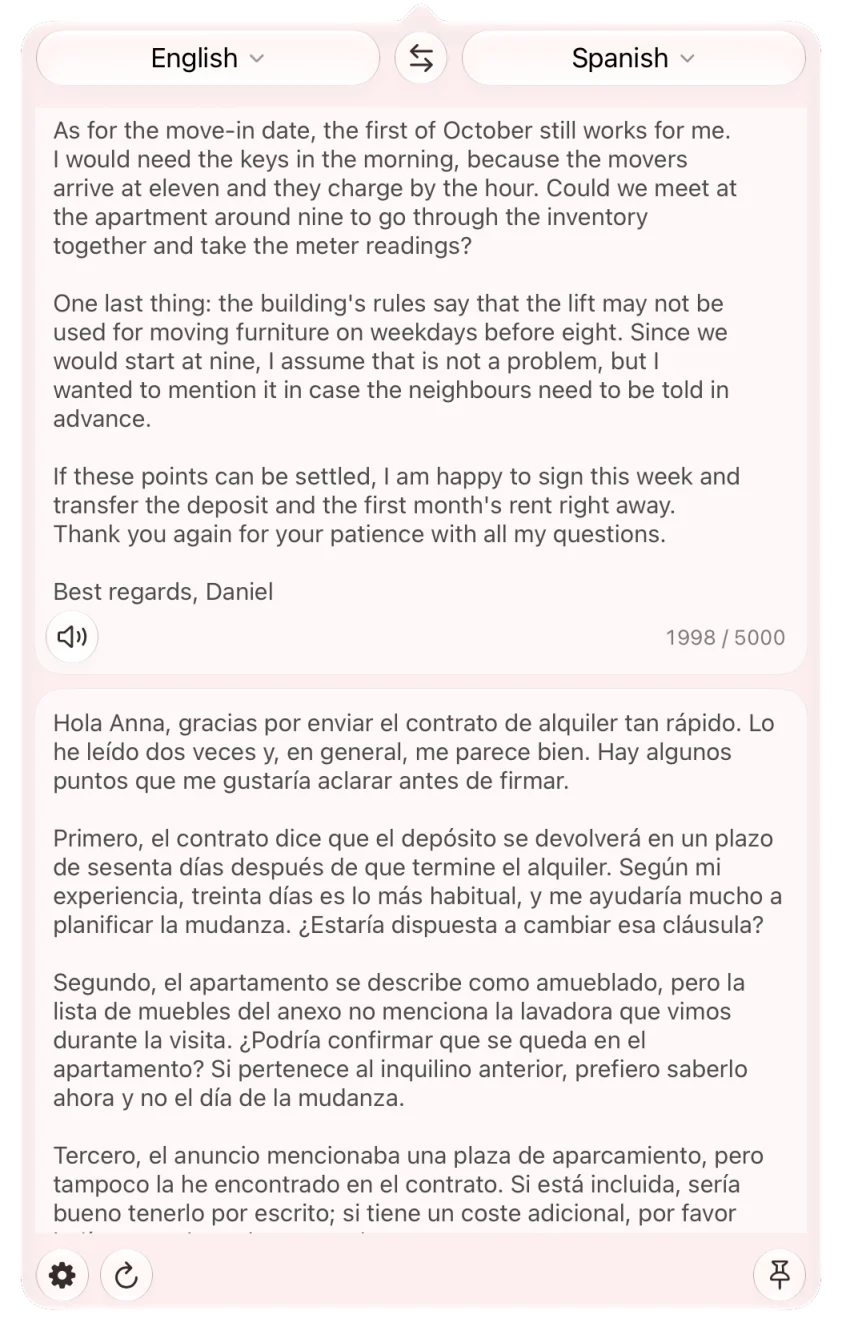
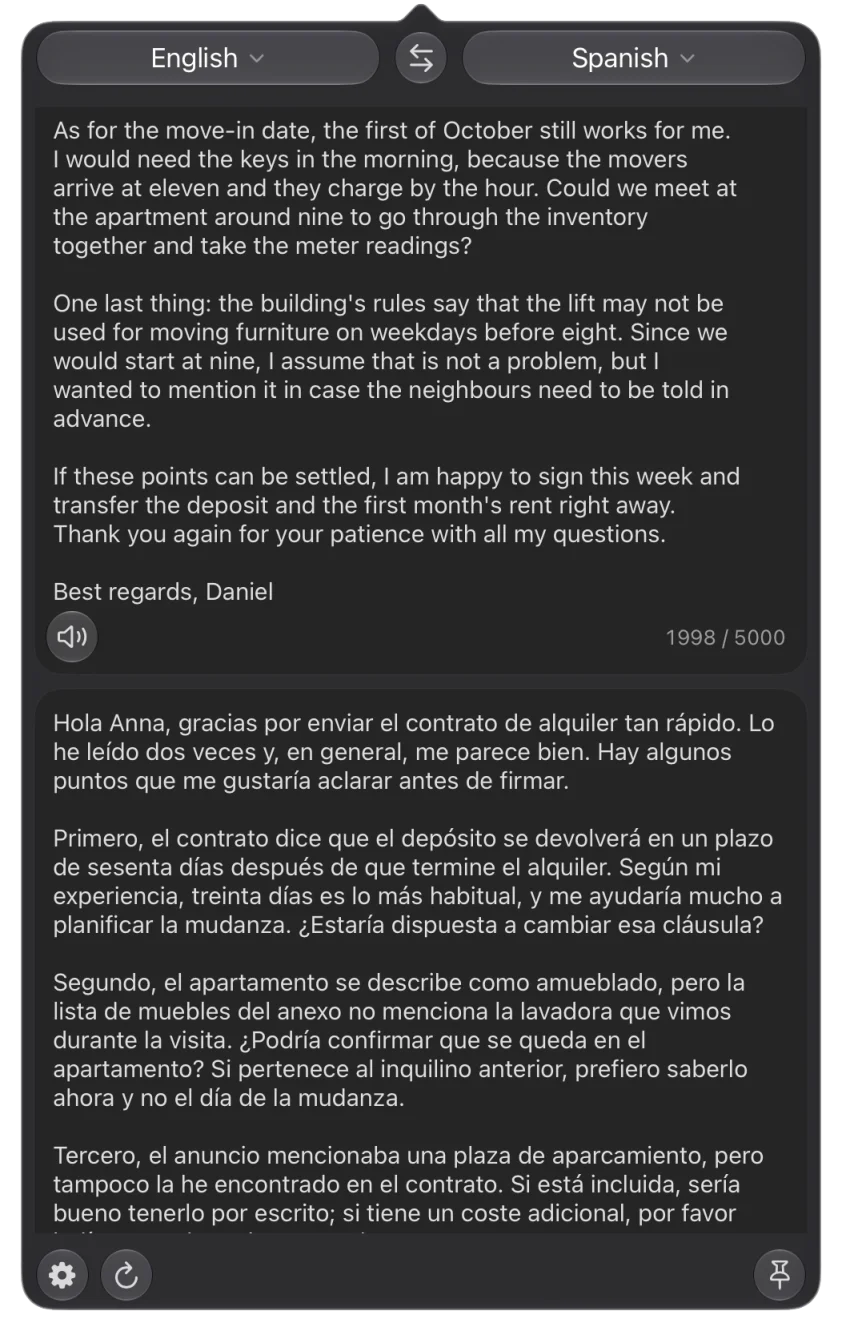
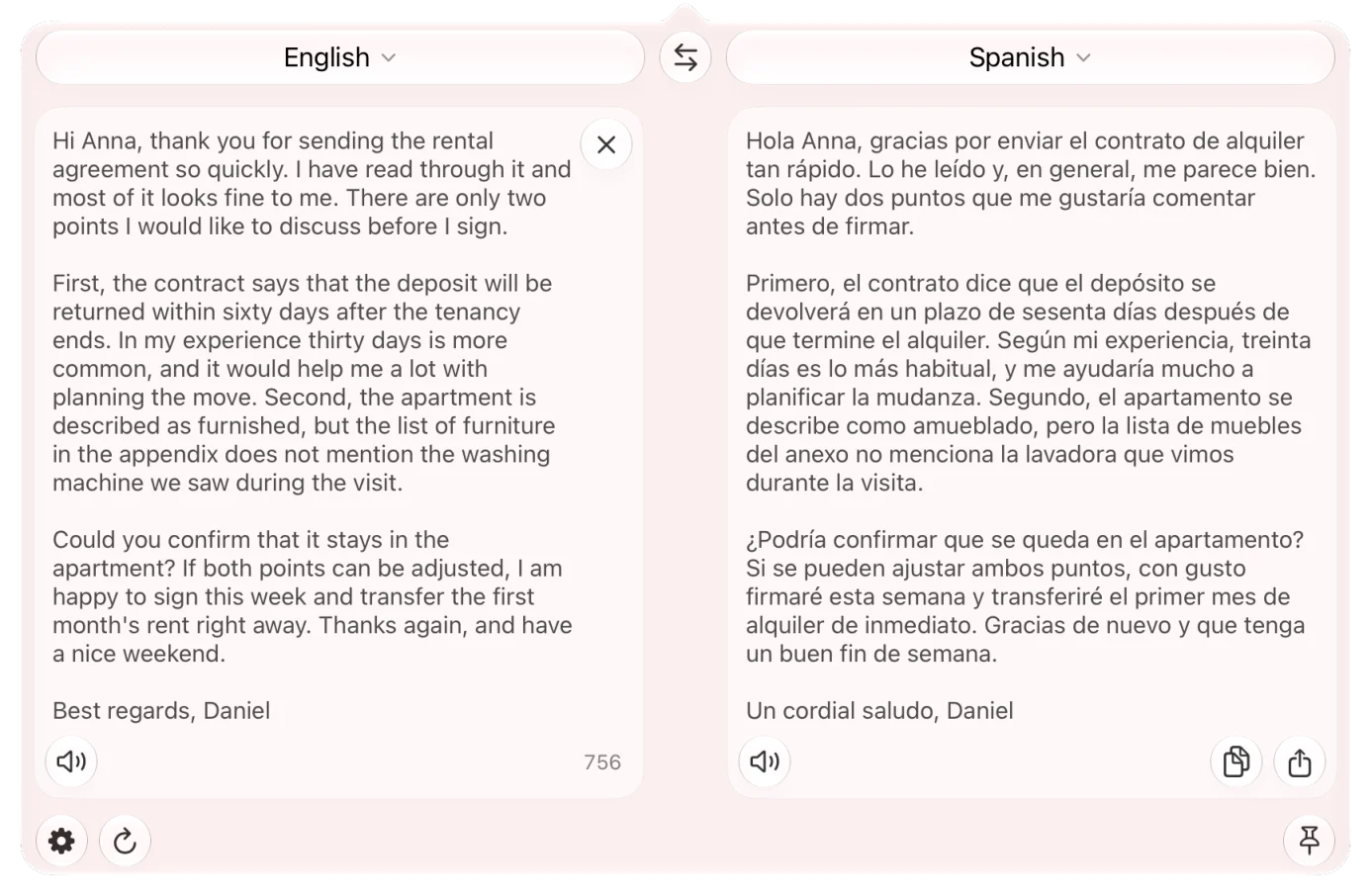
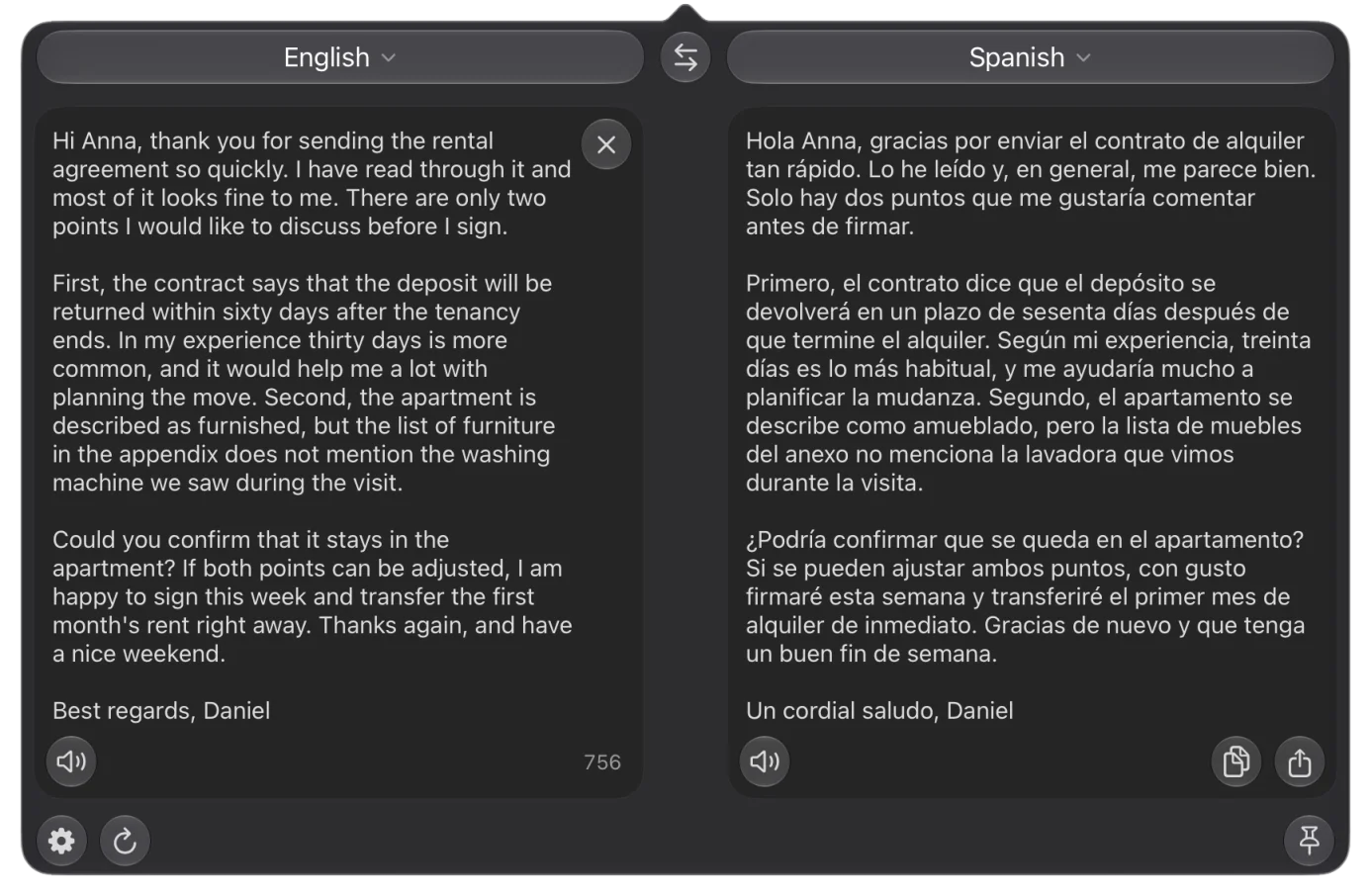
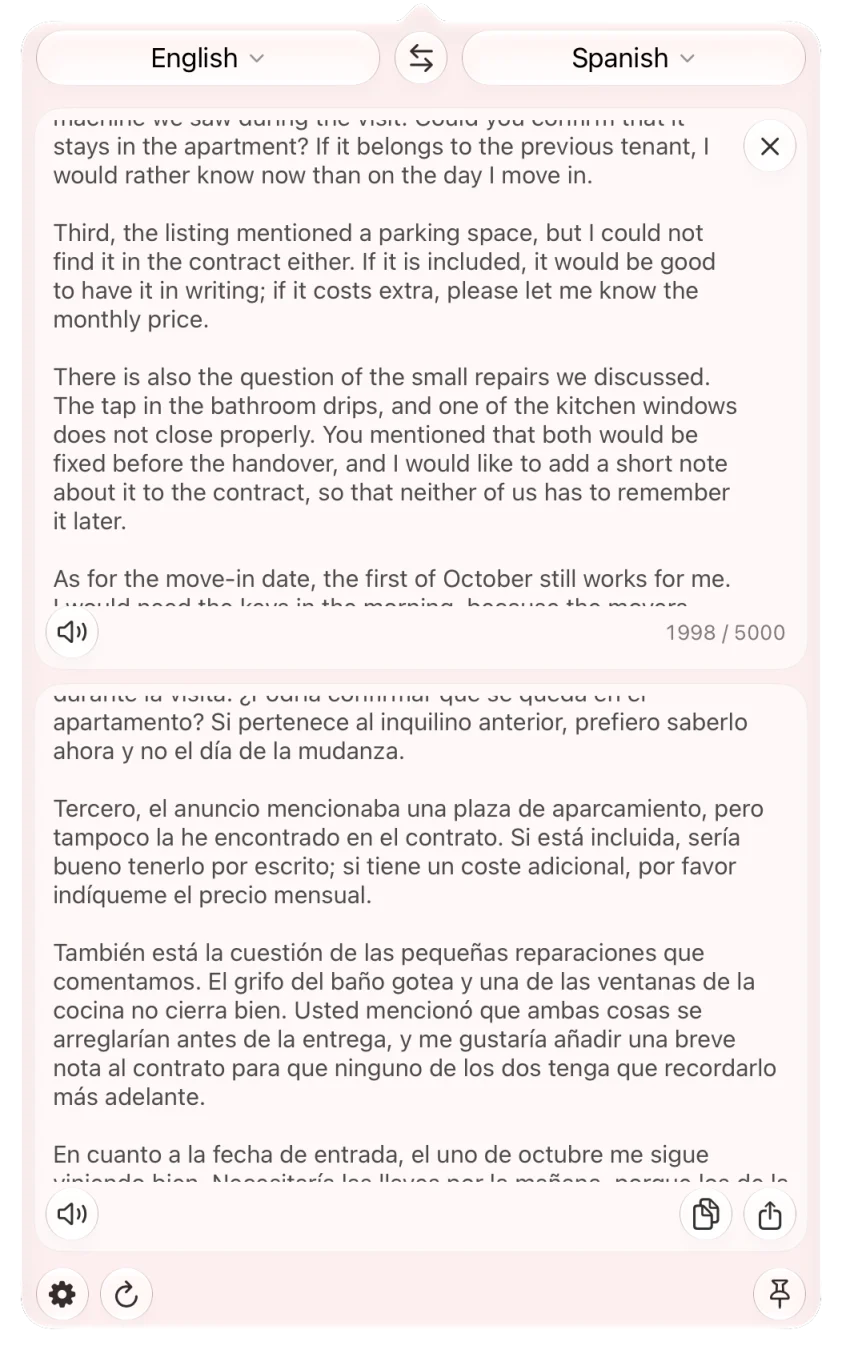
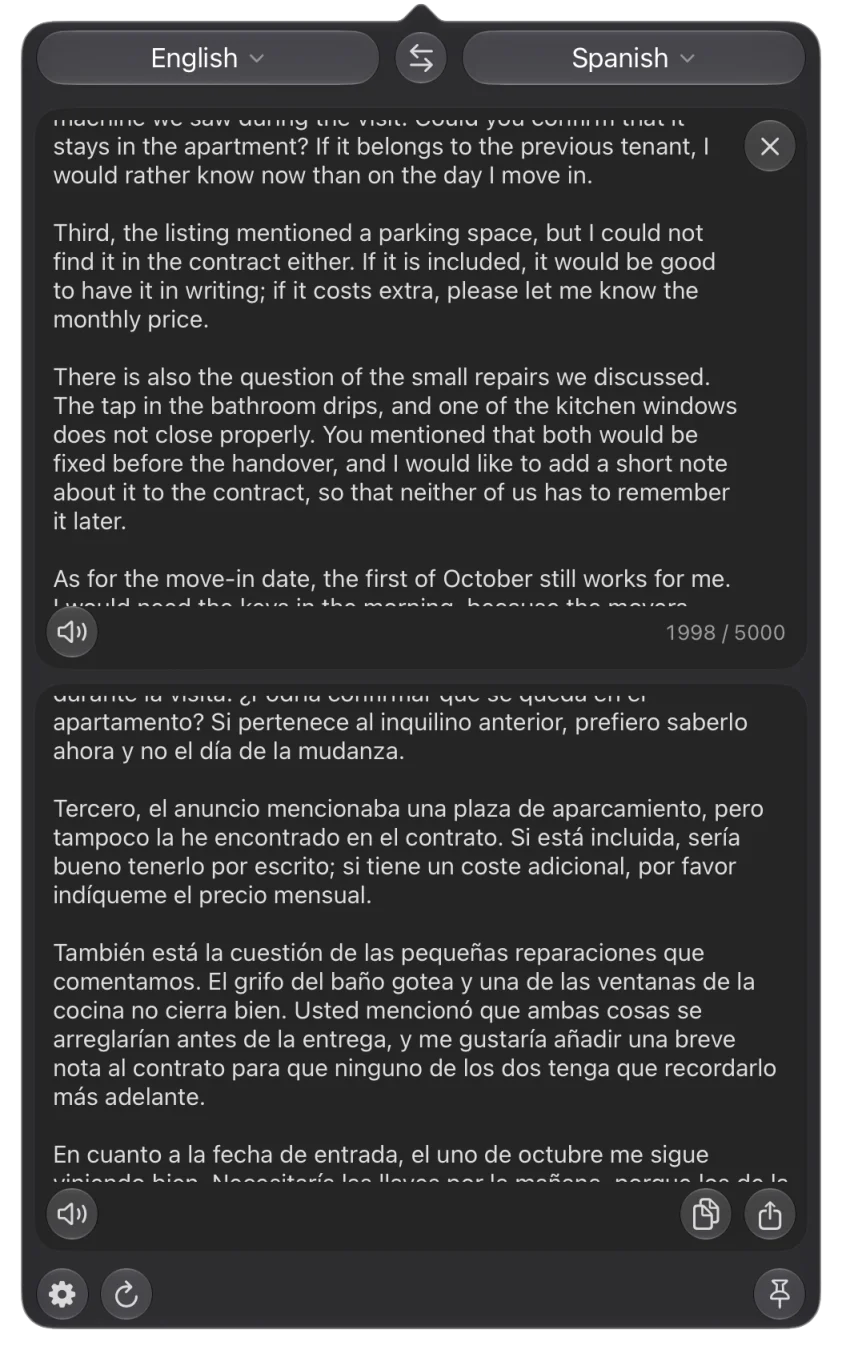
Paste a whole email. The popover grows into one continuous page: the original, then the translation. Prefer columns? Turn on side by side. Prefer to scroll one and have the other follow, sentence for sentence? Choose synced panes.
Yours to keep private
No account. No analytics, no crash reporting, no ads. The app sends the text you translate and the language codes to the translation service, and talks to Apple’s App Store to check what you have bought. Nothing else leaves your Mac.
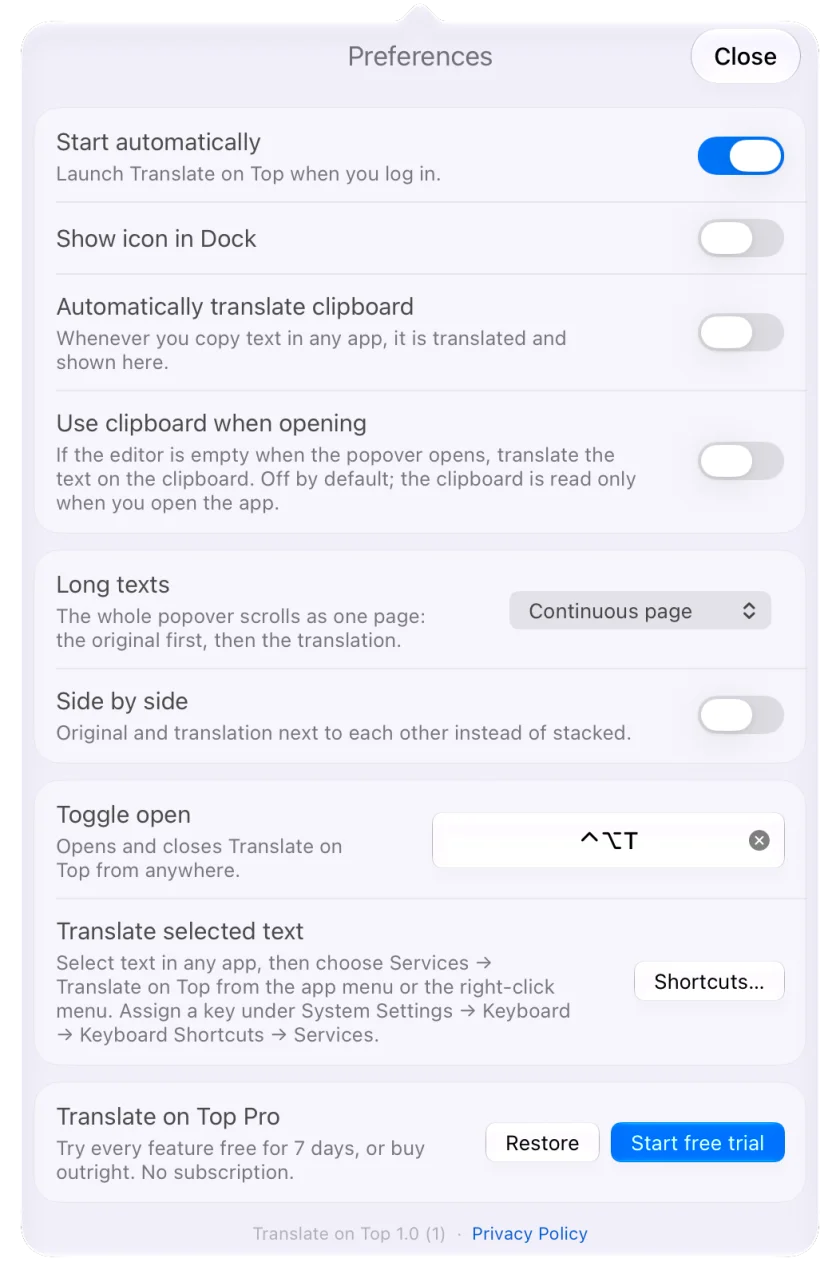
Preferences stay on your machine; there is no history on disk. The two features that read your clipboard are off until you turn them on.
Small things done right
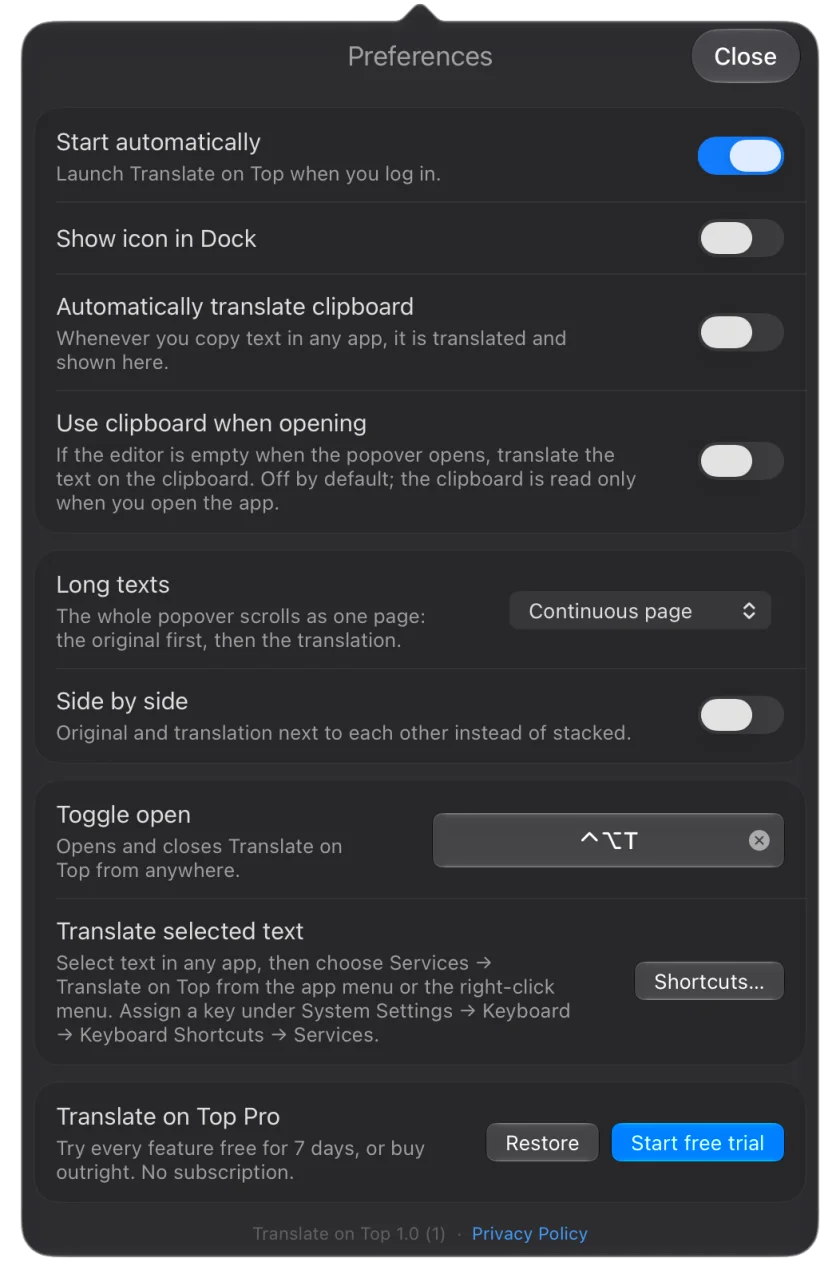
Liquid Glass on macOS 26 and 27, and the classic flat look on macOS 14 and 15.
Pronunciation for the original and the translation.
Notices when your text is not in the language you picked, and offers the one it is.
Can translate whatever you copy, as you copy it. Off until you turn it on.
Pin the popover to keep it open while you work.
Can start at login, and stays out of the Dock unless you want it there.
What it costs
Free to download. One purchase, once, if you decide to keep the whole thing. There is no subscription.
Seven days free. Start the trial when you like and every feature is unlocked. Nothing is charged, and nothing renews at the end of it.
Then five translations a day, for as long as you want. You keep every language, the dictionary, pronunciation and all three reading modes. Typing never spends the allowance on its own, and a repeat you have already translated costs nothing.
Or buy it once, whenever you like. You do not need to take the trial first. The daily limit goes, and translate-as-you-type comes back. One payment, no subscription, and the App Store shows the price in your own currency.
Requirements and download
macOS 14 Sonoma or later, and ready for macOS 27. Universal — Apple silicon and Intel.
Free to download, with a seven-day trial. The App Store shows the price in your own currency.
Purchases and support
Found a problem or have a suggestion? Write to support@translateontop.com with your macOS version and, if it is about a translation, the text and the language pair.
What you are buying
Translate on Top Pro is a one-time purchase. There is no subscription and no recurring charge. It unlocks on the Apple ID that bought it; Restore, in Preferences, brings it back after a reinstall or on another Mac.
What it depends on
Translation and pronunciation need an internet connection and rely on a third-party service. If that service changes, limits requests or stops being available, those features can be affected.
What it does not promise
The purchase does not come with a commitment to particular new features, or to compatibility with every future version of macOS. Your rights as a consumer are unaffected, including the right to updates needed to keep the app working as described and to a remedy if it does not.
Refunds
Payments, receipts and refunds are handled by Apple, not by me. Ask for a refund through Report a Problem on the App Store. For anything else, the support address above is the right place.
The dictionary card is missing, or the result says “Limited”
The main translation service is temporarily rate-limiting your network. A simpler service answers in the meantime; the app retries the main one automatically and the dictionary comes back by itself. Clicking “Limited” retries at once.
Which keyboard shortcuts are there?
The app has no menu bar to list them in, so here they all are. The first works from any app; the rest work while the popover is open.
- ⌃⌥T
- Open or close, from anywhere. Change it in Preferences.
- ⌘↩
- Translate now
- ⇧⌘S
- Swap the two languages
- ⌘1–⌘5
- Translate into a favourite language
- ⌥⌘1–⌥⌘5
- Translate from a favourite language
- ⌥⌘0
- Detect the language you translate from
- Esc
- Close
- ⌘Q
- Quit
In the language list, type to search, ↑ ↓ to move and Return to choose, or press 1–5 for a favourite. Right-click a language to pin it to a number.
Nothing happens when I press the shortcut in a full-screen app
In full screen the popover drops from the top centre of the screen. If it does not appear, check the shortcut in Preferences — another app may be using the same combination.
What happens when the trial ends?
The app keeps working. You get five translations a day, and you keep every language, the dictionary, pronunciation and all three reading modes. The one-time purchase removes the limit and brings back translate-as-you-type.
Is there a subscription?
No. One payment, and it is yours. Nothing renews and nothing is charged again.
Does it work offline?
No. Translation and pronunciation need an internet connection.
How do I quit?
Right-click the menu-bar icon and choose Quit, or press ⌘Q while the popover is open.